Having trouble making or receiving calls on GB WhatsApp? You may find that a voice call will not connect, a video call keeps dropping, or the other person cannot hear or see you. In some cases, messages work normally while calls simply refuse to connect.
This does not always mean that GB WhatsApp itself is broken. Call problems can come from your internet connection, microphone or camera permissions, battery restrictions, VPN settings, or an outdated app version.
Before reinstalling GB WhatsApp, try these simple fixes.
Why Are GB WhatsApp Calls Not Working?
GB WhatsApp calls rely on a stable internet connection and access to your phone's microphone and, for video calls, camera. Android can also restrict background activity or permissions, which may affect calling.
Common causes include:
- Unstable Wi-Fi or mobile data
- Microphone or camera permissions being disabled
- Battery Saver restricting GB WhatsApp
- VPN or network settings interfering with the connection
- An outdated GB WhatsApp version
- Temporary app cache problems
- Privacy or permission settings on your phone
The first step is to identify what actually happens when you try to call.
| Problem | What to check first |
|---|---|
| Call does not connect | Internet connection |
| Call keeps dropping | Network stability or VPN |
| No one can hear you | Microphone permission |
| You cannot hear the other person | Phone volume and audio output |
| Video does not work | Camera permission |
| Call works only sometimes | Network or app version |
| GB WhatsApp closes during a call | Cache, permissions, or app version |
Check Your Internet Connection
Voice and video calls need a stable connection. Your phone may show full Wi-Fi bars while the connection is still too unstable for a call.
Try switching networks before changing any GB WhatsApp settings.
If you are using Wi-Fi, switch to mobile data. If you are using mobile data, try a reliable Wi-Fi network.
You can also:
- Turn Airplane Mode on for a few seconds.
- Turn it off again.
- Reopen GB WhatsApp.
- Try another call.
If calls work after changing networks, your original connection was likely the problem.
If you use a VPN or private DNS, temporarily disable it and test the call again. Some network configurations can interfere with real-time voice and video traffic.
Check Microphone and Camera Permissions
If the call connects but the other person cannot hear you, check your microphone permission.
Go to:
Settings > Apps > GB WhatsApp > Permissions
Make sure Microphone is allowed.
For video calls, also make sure Camera permission is enabled.
The exact menu can differ between Android phones, but the important thing is to make sure GB WhatsApp has access to the hardware it needs. If other GB WhatsApp features are also having permission or GPS-related problems, see our guide on How to Fix Location Not Working in GBWhatsApp.
You can test the microphone with another app, such as your phone's voice recorder. If the microphone does not work there either, the problem may be with your phone rather than GB WhatsApp.
Check Whether Your Microphone Is Being Used by Another App
Android can sometimes show a microphone or camera indicator when an app is using these permissions.
If another app is actively using the microphone or camera, close it and try the GB WhatsApp call again.
This is especially worth checking if:
- You recently used a voice recorder.
- Another calling app is running.
- A screen recording app is active.
- Your microphone works in other apps but not during GB WhatsApp calls.
After closing other apps, restart GB WhatsApp and make another test call.
Turn Off Battery Saver
Battery-saving features can restrict apps from running normally in the background.
This can cause calls to disconnect, fail to ring, or stop working when GB WhatsApp is not actively open.
Go to:
Settings > Apps > GB WhatsApp > Battery
Depending on your Android device, look for options such as Unrestricted, Allow background activity, or No restrictions.
You can also temporarily turn off Battery Saver and test a call.
If the problem disappears, your phone's power-management settings were likely interfering with GB WhatsApp.
Check Your Phone's Volume and Audio Output
If the call connects but you cannot hear the other person, the problem may be audio-related rather than a connection problem.
First, increase your media or call volume while the call is active.
Then check whether your phone is connected to:
- Bluetooth headphones
- Wireless earbuds
- A car audio system
- Another external speaker
Your call audio may be going to a connected Bluetooth device instead of the phone's speaker.
Turn Bluetooth off temporarily and make another call.
If you can hear the other person afterward, the problem was probably the audio output rather than GB WhatsApp itself.
Clear GB WhatsApp Cache
A temporary cache problem can sometimes cause unusual app behavior, including crashes or problems with specific features.
To clear the cache:
Settings > Apps > GB WhatsApp > Storage > Clear Cache
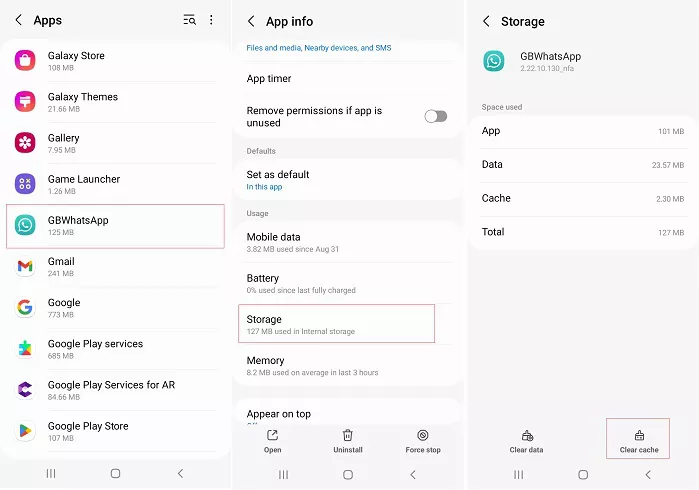
Then open GB WhatsApp and try a voice or video call.
Choose Clear Cache, not Clear Data.
Clearing the cache is a relatively simple troubleshooting step because it removes temporary files without resetting the entire application.
Check for a GB WhatsApp Update
If calls suddenly stopped working after you had been using GB WhatsApp normally, check your app version.
An older GB WhatsApp build may have compatibility problems after changes to the underlying WhatsApp service or Android system.
Look for an update option inside your GB WhatsApp settings if your build provides one.
You should also make sure that any new APK you install comes from a source you trust. Avoid downloading an APK simply because its file name claims to be the newest version.
If you recently updated GB WhatsApp and calls stopped working immediately afterward, the new build itself may be the cause. In that situation, checking whether other users are reporting the same problem can be useful.
If you are also seeing account or access-related problems after changing versions, you can read our guide on How to Fix GB WhatsApp Banned Problem for more troubleshooting steps.
Try a Voice Call Before a Video Call
If video calls are not working, do not assume that all calling features are broken.
Try making a normal voice call first.
Voice call works, video call does not
Focus on:
- Camera permission
- Camera access
- Another app using the camera
- Phone camera problems
- GB WhatsApp version
Neither voice nor video calls work
Focus on:
- Internet connection
- VPN or private DNS
- Microphone permission
- Battery restrictions
- GB WhatsApp version
This simple test can help narrow down the cause much faster.
Check Whether the Problem Affects One Contact
Try calling another person before making major changes to your app.
If calls work normally with other contacts, the problem may be limited to that particular conversation or recipient.
If you cannot call anyone, the issue is more likely related to your connection, permissions, phone settings, or GB WhatsApp installation.
This is one of the easiest ways to determine whether the problem is local to your phone.
GB WhatsApp Calls Keep Dropping
If a call connects but disconnects after a few seconds or minutes, start with your network.
Try moving closer to your Wi-Fi router or switching to mobile data. If the call becomes stable, the original network was likely the problem.
Also check whether Battery Saver is active and whether your phone automatically restricts GB WhatsApp in the background.
If you use a VPN, disconnect from it temporarily and make another call.
For frequent call drops, updating to a newer compatible GB WhatsApp version may also help.
GB WhatsApp Video Calls Not Working
Video calls require everything needed for voice calls plus access to the camera.
If the other person can hear you but cannot see you, check the camera permission first.
Go to:
Settings > Apps > GB WhatsApp > Permissions > Camera
Make sure access is allowed.
Then open your phone's normal Camera app and make sure the camera works correctly.
If the camera works normally outside GB WhatsApp but not during video calls, the issue is more likely related to GB WhatsApp's permissions, settings, or current version.
What If GB WhatsApp Keeps Crashing During Calls?
If GB WhatsApp closes whenever you start or receive a call, the problem may be different from a normal connection issue.
Start by clearing the app cache and checking your permissions. Then make sure your Android system and GB WhatsApp version are compatible.
If the crashes began immediately after an update, the particular GB WhatsApp build could also be responsible.
Do not repeatedly reinstall the app without first identifying the pattern. Knowing whether it crashes during voice calls, video calls, or only when receiving calls can make the problem much easier to troubleshoot.
Final Thoughts
When GB WhatsApp calls are not working, start by finding out whether the problem affects voice calls, video calls, or both. A failed voice call usually points you toward the connection, microphone, or app settings, while video problems often involve camera permissions as well.
For calls that keep dropping, focus on network stability and battery restrictions. If the problem started after an update, check your GB WhatsApp version before trying more complicated fixes.
And if GB WhatsApp also has problems sending or receiving normal messages, the issue may be broader than calling. In that case, checking your connection and other app settings should be your next step.
FAQ
Why can't I make calls on GB WhatsApp?
Check your internet connection first, then make sure GB WhatsApp has microphone permission. If calls still fail, disable VPN or Battery Saver temporarily and check whether your app version is outdated.
Why can I hear someone but they can't hear me on GB WhatsApp?
Your microphone permission may be disabled, or another app may be using the microphone. Check GB WhatsApp's microphone permission and test your microphone with another app.
Why is GB WhatsApp video calling not working?
Check the Camera permission first. If the camera works normally in other apps, clear the GB WhatsApp cache and check whether you are using a compatible version.
Why do my GB WhatsApp calls keep disconnecting?
Unstable internet is one of the first things to check. Switching between Wi-Fi and mobile data, disabling VPN temporarily, and removing battery restrictions can help identify the cause.
Do I need to reinstall GB WhatsApp if calls do not work?
Not necessarily. Try checking your connection, permissions, battery settings, cache, and app version first. Reinstalling should not be the first troubleshooting step.